A session package tracker should help you answer a concrete question: how many sessions does this client have left, and what changed the balance? You might be tracking lessons, appointments, coaching, or another service sold as a pack. The same check applies.
Before choosing software, take one package you already understand and follow it through the next completed visit. You should be able to explain the result to the client without reconstructing the account from messages.
Start With the Balance You Know
Suppose someone bought 10 sessions and has 6 remaining when you start tracking. The original package size is 10. The opening balance is 6. Four sessions were used before tracking began.
Those are three different facts. Recording them accurately lets you start partway through a package without entering four made-up appointments. If you need the earlier dates or notes, keep the records you already have; an opening balance doesn’t recreate them.
For any tracker you’re considering, check whether you can record the original total and the current balance separately. Then check what its history shows after you enter them.
Try the Package in CountedIn
CountedIn tracks client session packages and remaining balances. Here’s a way to check the workflow with one existing pack. If you’re exploring first, use a made-up client name and leave email and phone blank.
- Add the client. Choose Package as the billing type.
- Record the existing package. In the client’s record, add a package and choose Record an existing package. Enter 10 for the original total and 6 for Sessions remaining now.
- Check the starting point. The balance should show 6 of 10 remaining. The four sessions used earlier stay separate from visits recorded in CountedIn.
- Log the next completed visit. After that visit takes place, record it as Completed. The balance becomes 5 of 10 remaining, with one recorded visit in the app’s history.
- Check the client’s view. Open the client’s Share link and check that it shows the same balance and recorded visit. Keep that link private to the client; it opens without a login.
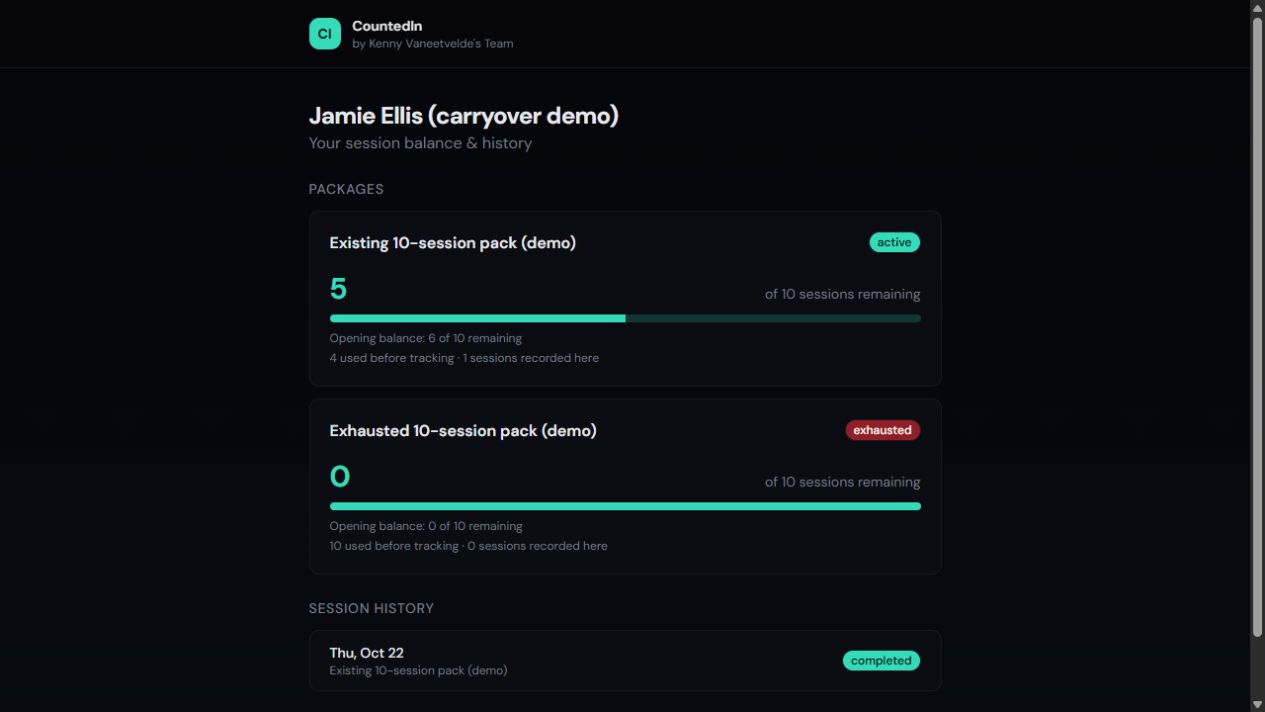
The demo shows earlier usage separately from the visit recorded in CountedIn. Open the client view at full size.
Keep Booking and Payment Records Clear
For this workflow, keep your booking and payment process where it is. Recording a completed session in CountedIn doesn’t automatically update another booking or payment tool. There is no automatic integration between those tools in this walkthrough.
A booked appointment, a completed visit and a payment are different events. Before marking a visit Completed, check that this is the event you intend to deduct from the package. Apply your own cancellation terms when deciding how to record a missed appointment.
Agree which record you use for the remaining balance. If you also keep a separate ledger, decide when to update it so that two different counts don’t develop.
Choose Around the Task You Need
Use the same example when evaluating your current spreadsheet or another app. Check the opening balance, the effect of one completed visit, and the information the client can see. If scheduling or collecting payments inside the same product is essential, include those tasks in your evaluation too.
CountedIn has a 14-day trial with no card required. Starter is US$29/month for up to 50 clients. You can follow the existing-package walkthrough before deciding whether the workflow fits your work.