
Session Packages
Packages are how you track prepaid sessions for clients with the Package billing type. Create a package, and CountedIn counts down the credits as you log sessions. Per-session, monthly, and no-billing clients don't use packages.
Creating a package
From a client's profile, click New Package in the Packages section.
Name the package
Set the total sessions
Set the price (optional)
Set an expiration date (optional)
Package templates
If you sell the same packages repeatedly (most practitioners do), create templates to save time. A template saves the package name, session count, price, and expiry duration so you can create new packages with one click.
Go to Settings
Create a template
Use the template
Tracking credits
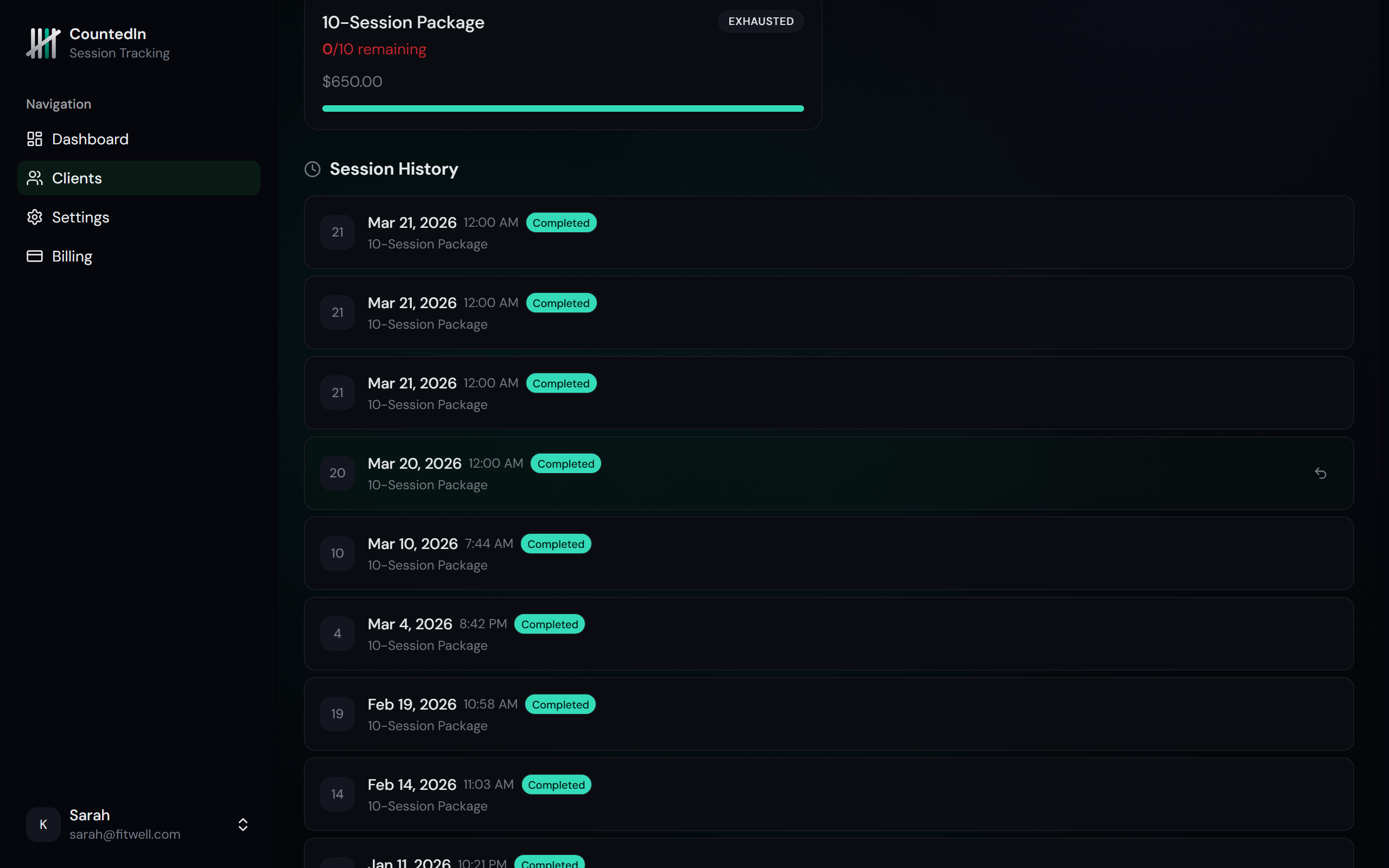
Every package shows a progress bar that visually represents how many sessions are remaining out of the total. The progress bar changes color as credits run low:
- Green - plenty of sessions remaining
- Amber - running low (1-2 sessions left)
- Red - exhausted (0 sessions remaining)
Multiple packages per client
Clients can have multiple packages at the same time. This is useful when:
- A client buys a new package before the old one is fully used
- You offer different types of sessions (e.g., 1-on-1 vs. group)
- A client has packages with different expiration dates
When logging a session, you choose which package to deduct from. The credit comes off the selected package only.
Package expiration
If you set an expiration date on a package, CountedIn will:
- Send you an email alert 7 days before the package expires
- Mark the package as expired on the expiration date
- Prevent new sessions from being logged against it
Any unused credits on an expired package remain visible in the client's history but can no longer be used.