CountedIn supports multiple payment methods. Accept payments via Stripe payment links,
or record manual payments for cash, Venmo, bank transfers, and more.
Recording manual payments
For per-session and monthly clients (or any client), you can record payments received
outside of Stripe. This is useful for cash, Venmo, bank transfers, or any other payment method.
counted-in.app
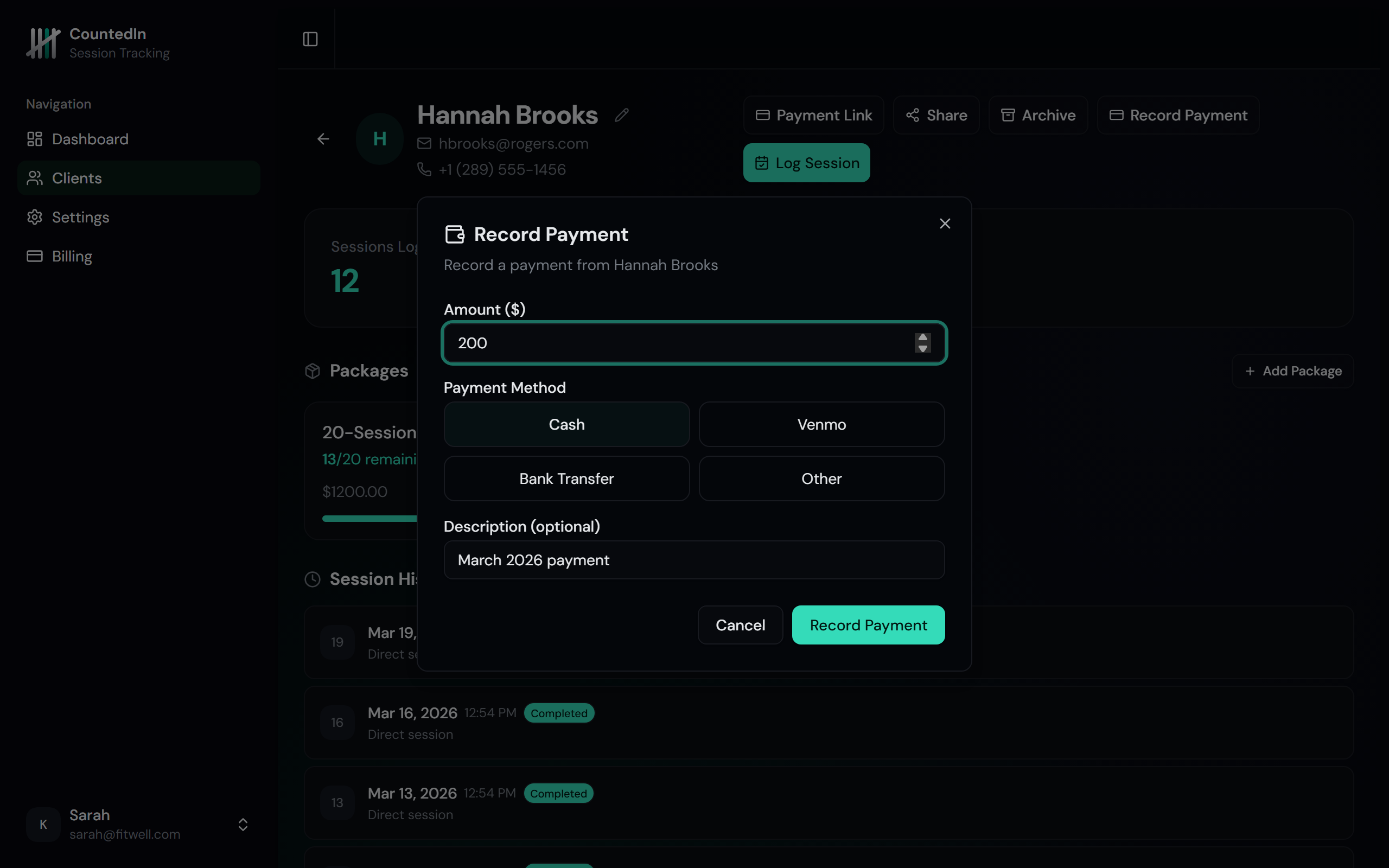
Record cash, Venmo, bank transfer, or other payments
Open the client's profile
Navigate to the client who paid you.
Click Record Payment
The button appears on the client profile for per-session and monthly clients.
Enter the details
The amount pre-fills based on the client's billing rate. Choose the payment method
(cash, Venmo, bank transfer, or other) and add an optional description.
Confirm
Click Record Payment. The payment is tracked and counts toward
your dashboard revenue.
For monthly clients, the description auto-fills with the current month name
and the billing period is automatically set. This makes it easy to see at a glance which
months have been paid.
Tip
Manual payments are tracked alongside Stripe payments in your dashboard revenue charts.
This gives you an accurate picture of total earnings regardless of how clients pay.
Setting up Stripe (online payments)
For package clients, you can send payment links so they can pay online and have their package
created automatically. This requires a Stripe account.
Important
Stripe payment links require the Studio plan ($49/month) and a Stripe account.
Manual payment recording works on all plans.
counted-in.app
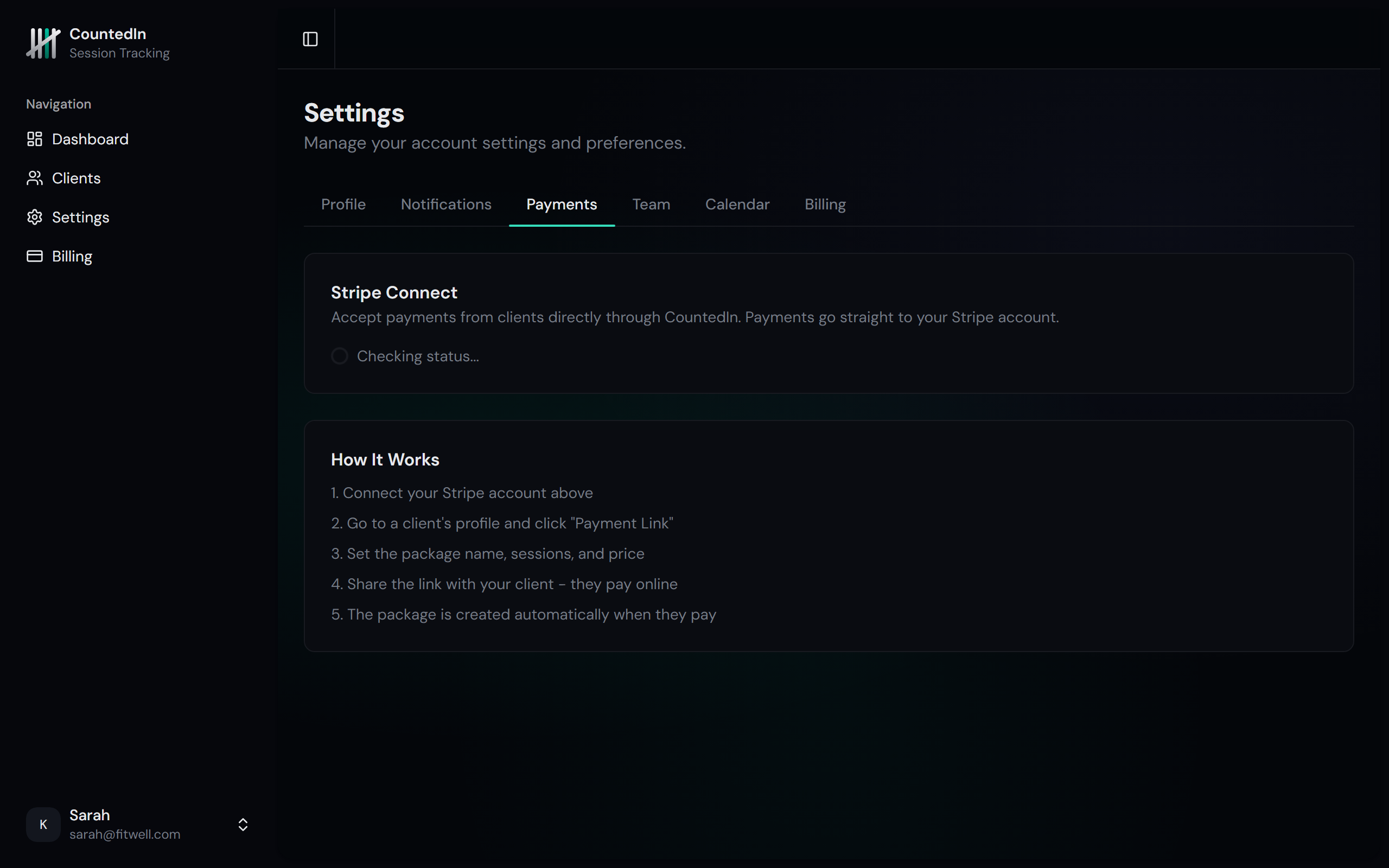
Connect your Stripe account to start accepting online payments
Go to Settings > Payments
Navigate to the Payments section in your settings using the sidebar.
Click Connect with Stripe
You'll be redirected to Stripe to create or connect your account. Stripe will ask
for your business information and bank details.
Complete onboarding
Follow Stripe's steps to verify your identity and add a bank account for payouts.
Once complete, you'll be redirected back to CountedIn.
You're ready
Your Stripe account is now connected. You can start creating payment offers for your clients.
Tip
Stripe takes 2.9% + $0.30 per transaction. Payouts typically arrive in your bank account
within 2 business days. CountedIn does not charge any additional transaction fees.
Creating payment offers
A payment offer is a link you send to a client so they can pay for a specific package online.
When they pay, the package is created automatically.
Go to a client's profile
Open the client you want to create a payment offer for.
Click Create Payment Offer
Choose the package details: name, sessions, price, and expiry. This is what the
client will see on the payment page.
Send the link
Copy the payment link and send it to your client via text, email, or any messenger.
The link takes them to a clean, branded payment page.
Client pays
The client enters their card details on the Stripe-powered checkout page. It's
secure and works on any device.
Package created automatically
As soon as the payment succeeds, CountedIn automatically creates the session package
with the correct number of credits. No manual work needed.
Payment history
All payments (both Stripe and manual) are tracked in the client's profile and contribute
to your dashboard revenue. The activity feed shows recent payments with the method used
(Stripe, cash, Venmo, etc.).
Automated payment reminders
CountedIn can automatically send you alerts when:
A package client's credits reach zero (package exhausted)
A monthly client's payment is coming due
A monthly client's payment is overdue
These alerts appear in your dashboard's Needs Attention list and can trigger email
notifications. See the Notifications docs for details.