
Team Management
Running a studio or working with other practitioners? Invite team members to share your client roster and split session tracking responsibilities.
Inviting team members
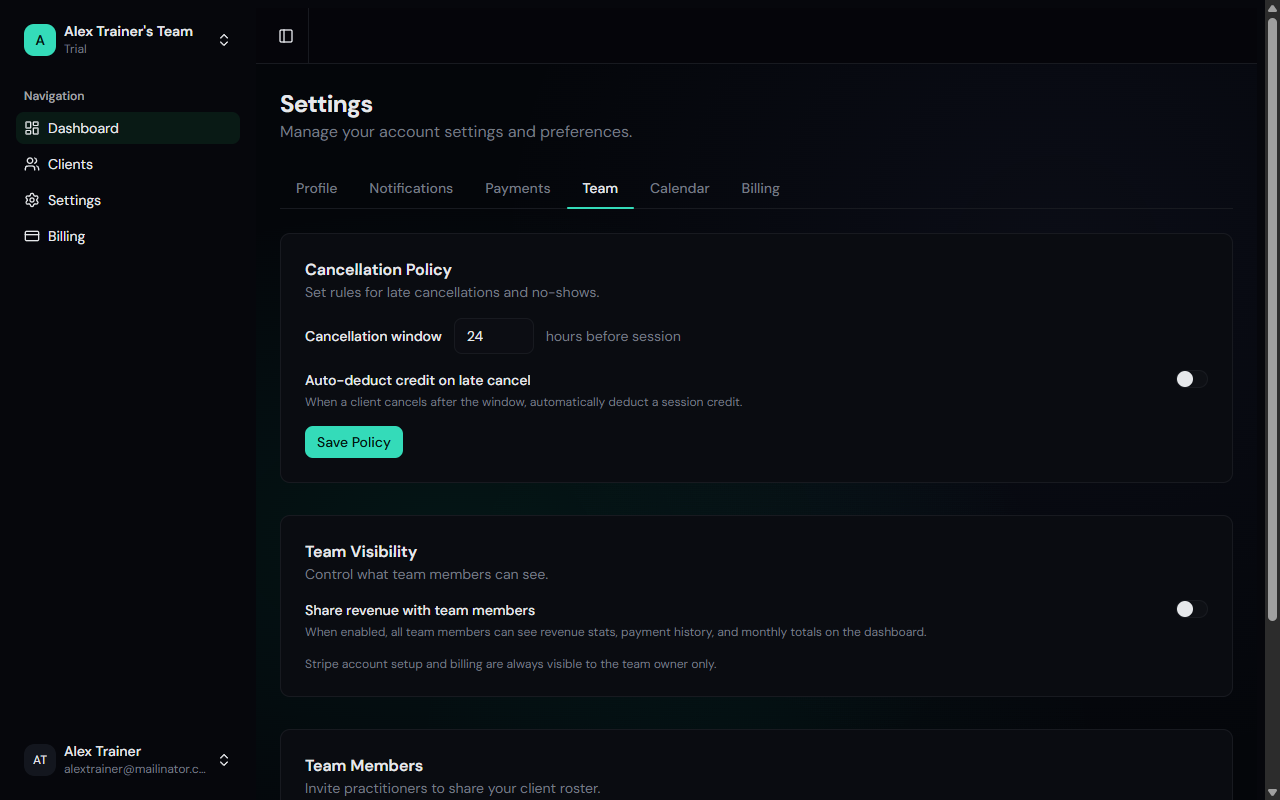
Go to Settings > Team
Enter their email
Click Invite
Switching between teams
If you belong to multiple teams (your own and one you've been invited to), you can switch between them using the team selector at the top of the sidebar.
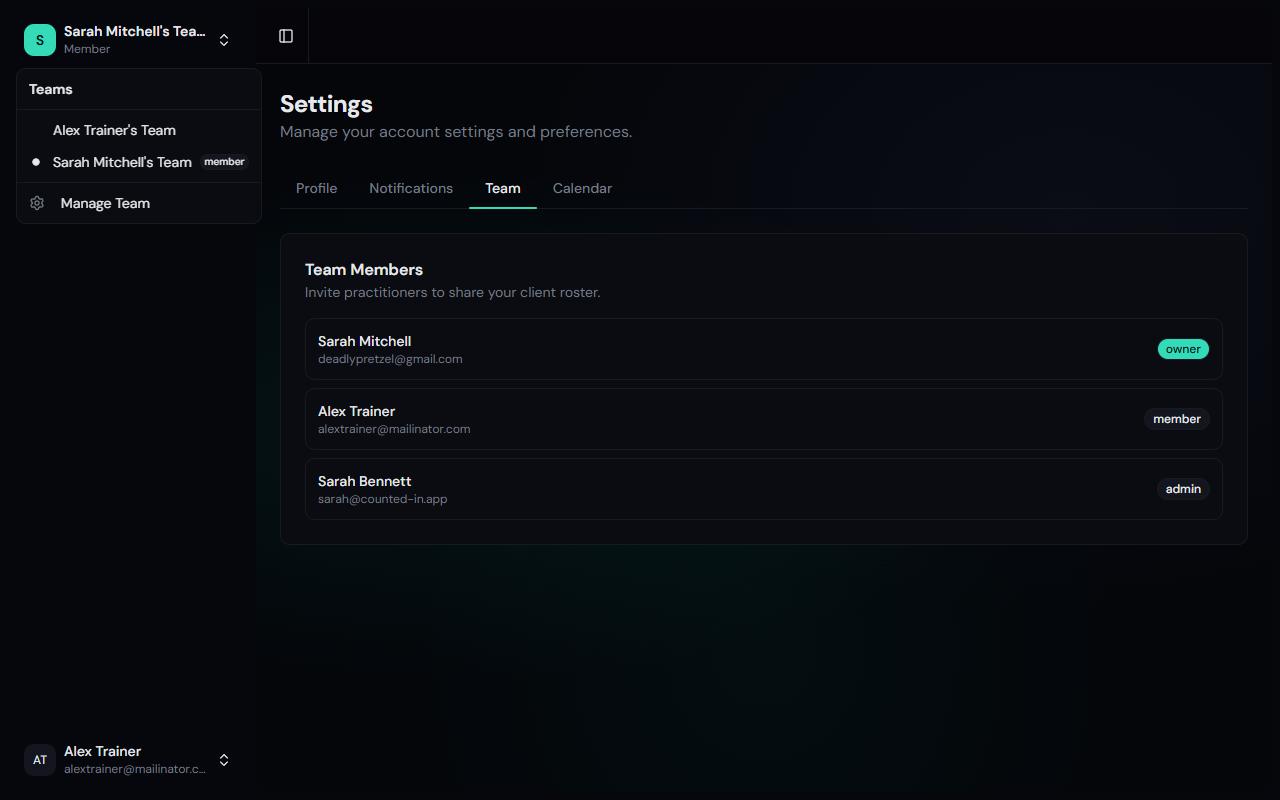
Your selection is remembered, so you'll stay on the same team when you navigate between pages or come back later. All data on the dashboard, client list, and settings updates instantly when you switch.
Team roles
Each team member has a role that determines what they can see and do:
| Role | Can do |
|---|---|
| Owner | Everything: billing, Stripe setup, team management, settings, client management, revenue data |
| Admin | Client management, session logging, invite/remove members, cancellation policy, revenue data |
| Member | View clients, log sessions, view dashboard (revenue hidden by default) |
Members see a simplified view: the Payments and Billing tabs are hidden, and they cannot invite or remove team members.
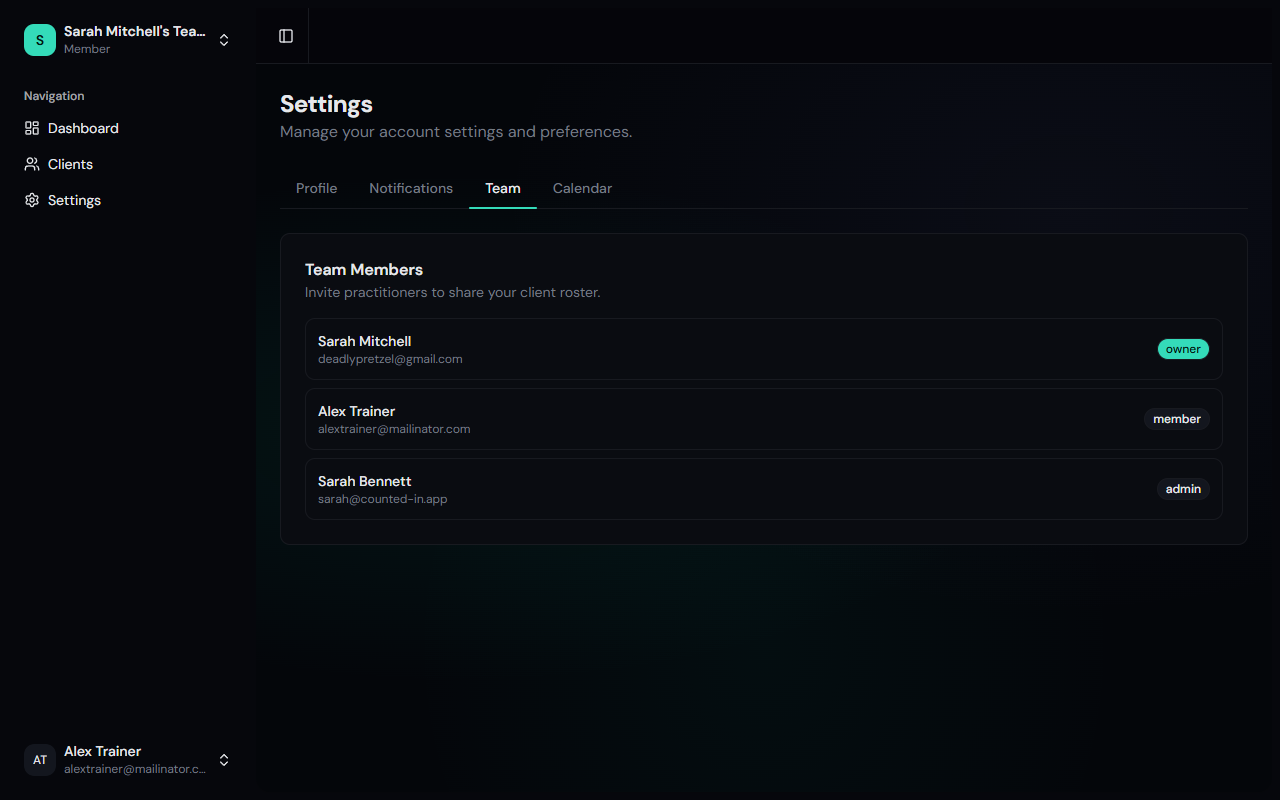
Revenue visibility
By default, revenue data (monthly totals, payment history, revenue charts) is only visible to the team owner and admins. If you want your team members to see revenue too, you can enable it in the Team Visibility settings.

Shared data
All team members share the same client list, packages, and session history. When one team member logs a session, everyone sees the update in real time.
This means your front desk can log sessions, your other trainer can check a client's credits, and you can see the full picture on your dashboard - all using the same account.
Removing a team member
To remove someone from your team, go to Settings > Team and click the Remove button next to their name. They'll immediately lose access to your client data. Sessions they logged in the past are preserved.