
Logging Sessions
Logging a session is the core action in CountedIn. It works for all billing types: package clients get a credit deducted, and everyone else gets a session recorded in their history.
How to log a session
From any client's profile page, click the Log Session button. What you see next depends on the client's billing type.
Package clients
For clients with prepaid packages, the dialog shows which package to deduct from.
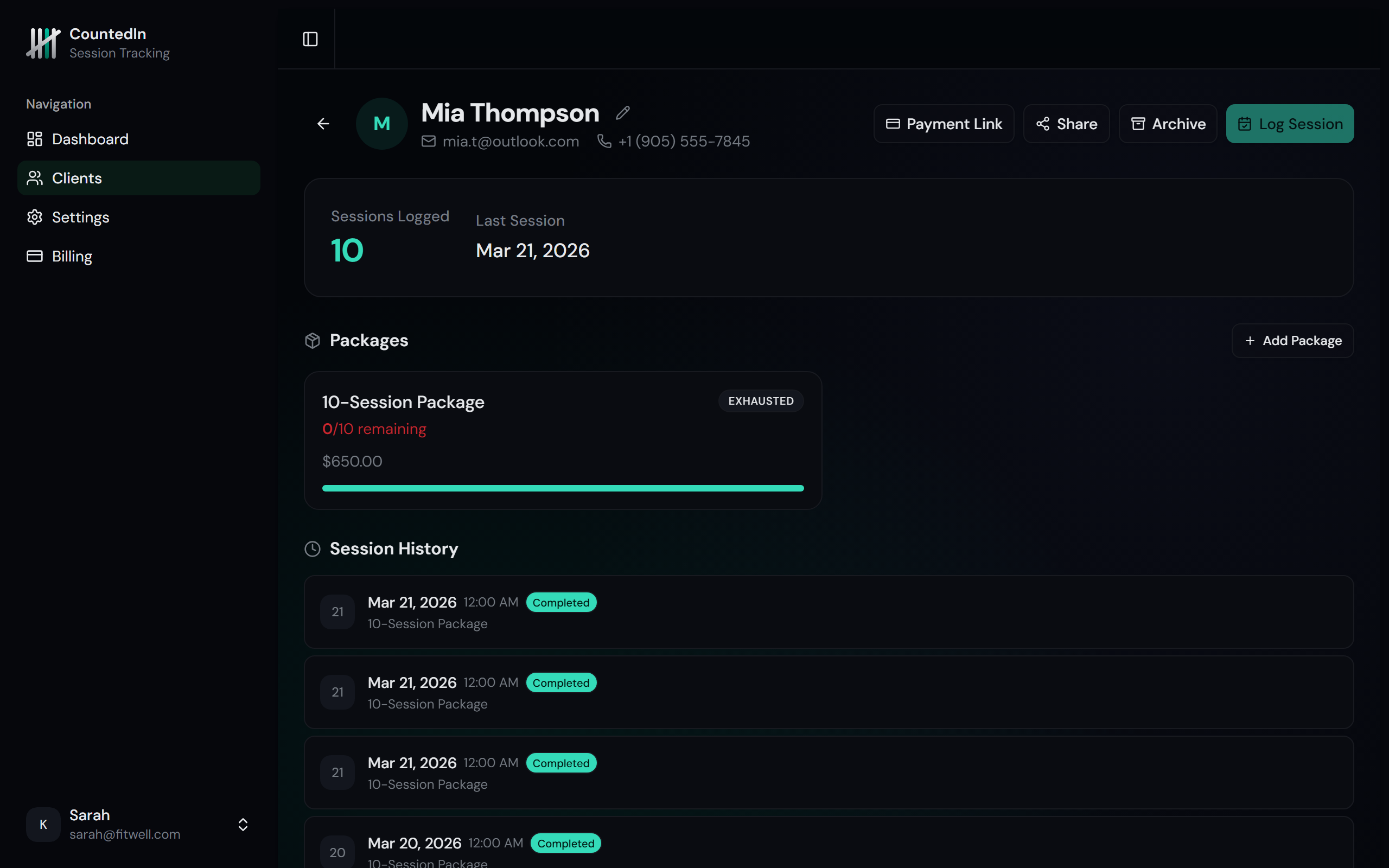
Select the package
Set the session status
Add notes (optional)
Confirm
Per-session, monthly, and no-billing clients
For clients without packages, the log session dialog is simpler. There's no package selection step. Just set the status, add optional notes, and confirm.
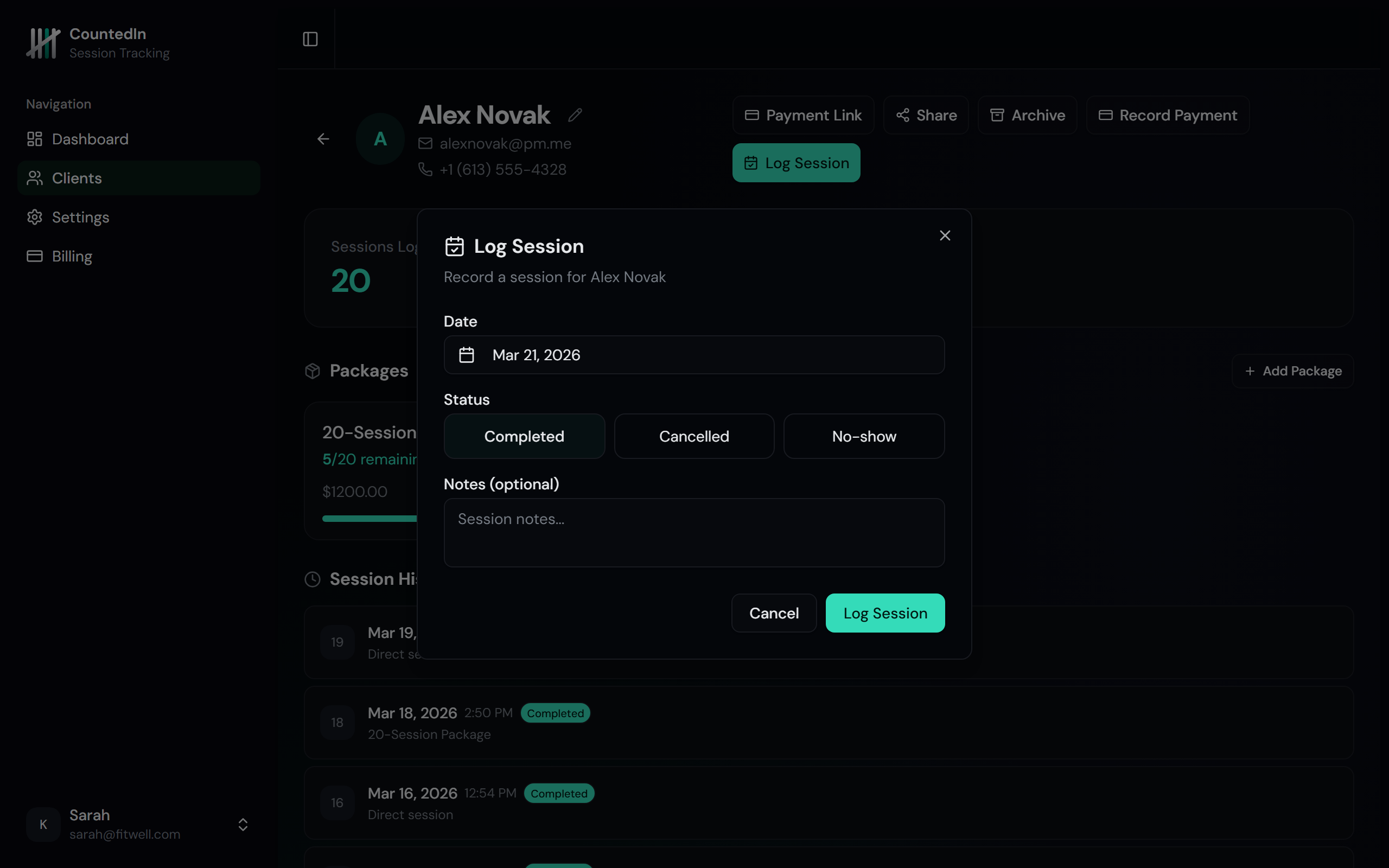
These sessions are recorded as "direct sessions" in the client's history. They still appear in your dashboard stats, session trends, and activity feed just like package sessions.
Session history
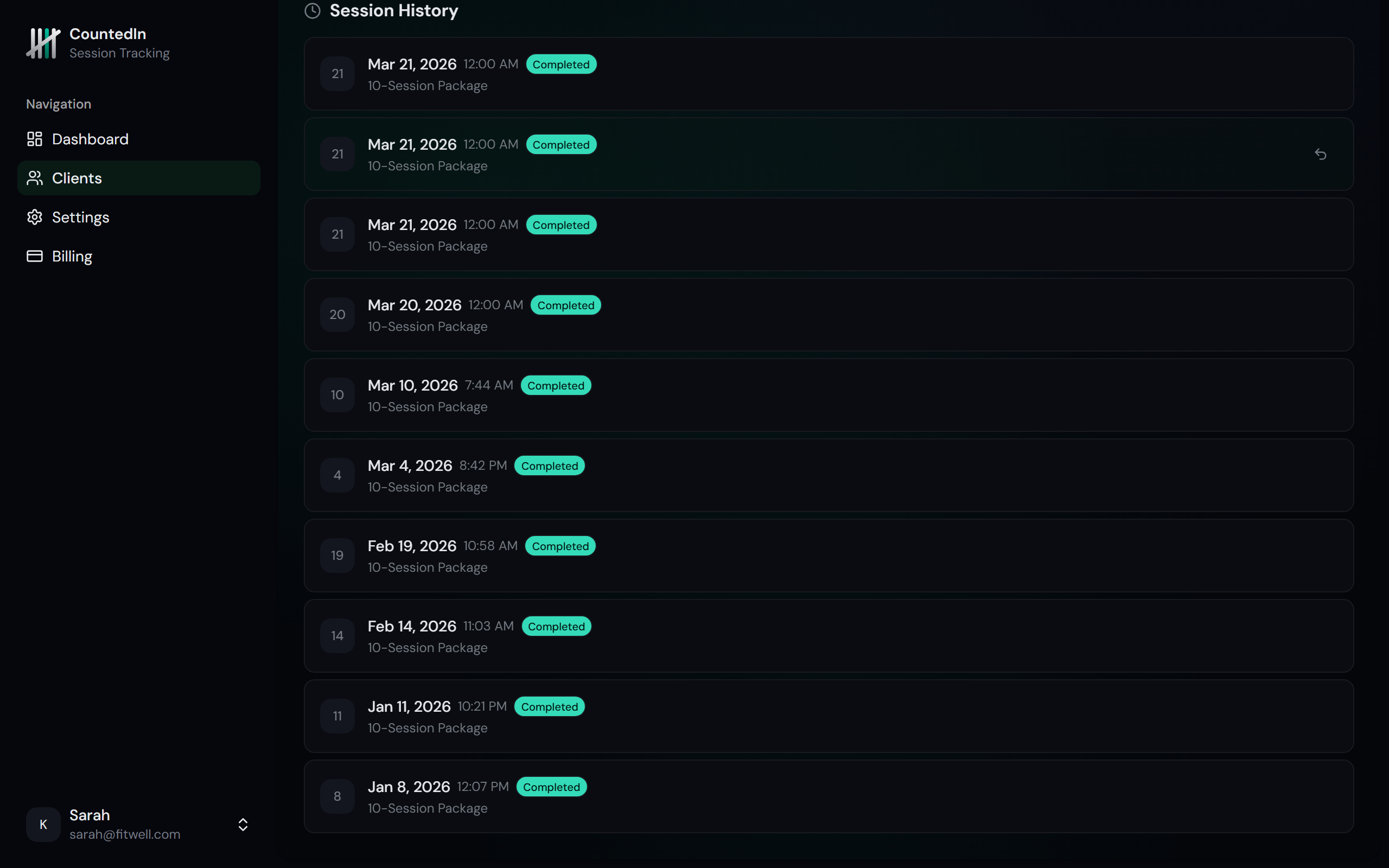
Every session you log appears in the client's Session History section, showing the date, status, and any notes. For package-linked sessions, the package name is shown. For direct sessions, it shows "Direct session".
Undoing a session
Logged a session by mistake? Every session in the history has an Undo button. Click it and:
- The session is removed from the history
- If it was a package session, the credit is restored immediately
- If it was a direct session, it's simply removed from the count
Bulk session logging
Running a group class? Instead of logging sessions one by one for each attendee, use Bulk Log to log the same session for multiple clients at once.
Bulk logging is available from the client list page. Select the clients who attended, choose the status, and log all sessions in one action. For package clients, credits are deducted from their respective packages. For non-package clients, direct sessions are created.
Cancellation policy
You can configure a cancellation window in your team settings. This defines how many hours before a session a client must cancel to avoid losing a credit.
For example, with a 24-hour cancellation window:
- Cancelled 24+ hours before - no credit deducted
- Late cancellation or no-show - credit deducted automatically
Configure this in Settings > Team. See the Account & Billing docs for details.